Troubleshooting · Helpful Guides
YouTube TV Playback Errors: Causes and Safe Fixes to Try
Guide details
- Written by
- Truly Helpful Guides
- Published
- Last updated
- Sections
On this page13 sections
- How to fix recurring YouTube TV playback errors
- Start streaming
- Start streaming
- What are YouTube TV’s rules when you travel?
- Update your Current Playback Area
- Tap Current Playback Area
- Troubleshooting failed web and browser verification
- Location and device verification
- Clear cache and cookies
- Change the location manually
- What about streaming-limit and home-network settings?
- Decide if self-troubleshooting is no longer sufficient
- Sources
When you see a playback error from YouTube TV, it’s like the app is saying, “Something went wrong!” Unfortunately, the message itself doesn’t explain what went wrong. Did your home Wi-Fi drop out? Is your device out of date? Was there an issue with the YouTube TV app data? Or was this caused by a temporary outage on YouTube TV’s end?
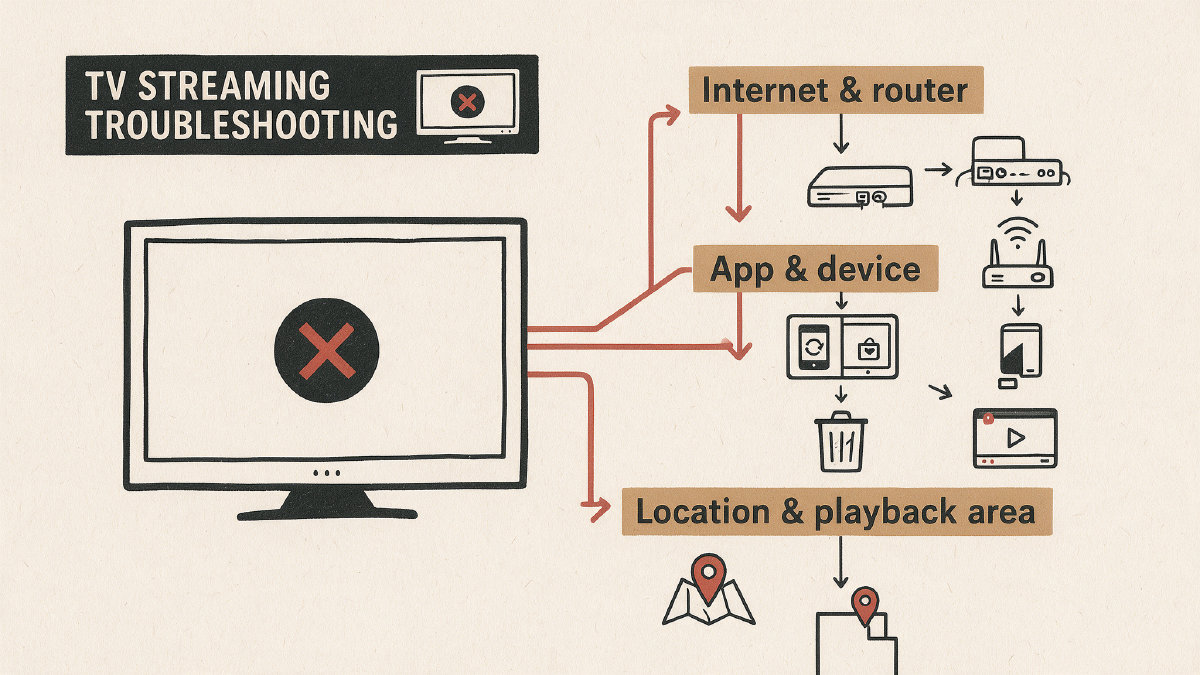
To help diagnose your problem, YouTube TV has a list of possible causes for these errors, including:
-
Network connection problems
-
Device compatibility issues
-
App corruption or outdated versions
-
Location/account verification problems
You’ll want to test these in order of least disruption, starting first with trying to restart the app. If that fails, try restarting the device and/or router, then power cycle the router for 60 seconds. Moving closer to your router might also help, as might using Ethernet instead of Wi-Fi. Then you should check for updates for both the device’s software and the YouTube TV app.
If those don’t solve the issue, then you can move on to other recovery steps.
A second device can also help identify the root cause of the playback issue. If one YouTube TV device fails to play while another works, then the problem is more likely to be in the failing device’s app, cache, or software. But if all devices fail, you’ll have to troubleshoot the network, account, and location information instead.
But how do you know when the app has failed sufficiently that you need to re-install it? A repeated crash may be sufficient, as well as failure to load the app at all, possibly indicating some kind of corrupted file. Otherwise, simply rebooting the device or updating the app (and device) may be enough. And once again, the same rules apply to YouTube TV reinstallation — no promises!
When you’re away from your verified Home area, YouTube TV can still show programming that’s local to where you currently are, but it can’t show or record the networks tied to your Home area. You may need to enable location information on your device to verify where you are.
In fact, even streaming content via a browser will require your device to use its current location, which can be configured separately.
Home Area limits are another aspect that could prevent you from accessing YouTube TV. In short, there are limitations to how often you can change your Home area, depending on how much you’ve used it in the last few months, or whether you’ve been living elsewhere physically.
We’ll show you how to update your Current Playback Area, but first we need to understand how exactly YouTube TV defines your Home area.
How to fix recurring YouTube TV playback errors
First, make sure that the YouTube TV app is updated.
Open your phone’s Settings app and look for the Software update or System update option (the exact path varies by Android phone)
Install any available system update
Then open the Google Play Store, search for YouTube TV, and install any available app update
Now that your app is up to date, you can look for other fixes. The simplest thing to do is close and reopen the YouTube TV app.
Open your device’s recent-apps view (the gesture or button varies by Android phone)
Swipe the YouTube TV app away or tap Close/Close all
Reopen the YouTube TV app
Try watching something. If that didn’t work, try closing and reopening the YouTube TV app again.
Still having trouble? Restart your device
Press and hold the Power button
Select Restart
Your phone will restart
Open the YouTube TV app
If this still isn’t working, then it’s time to restart your router.
Unplug your router
Wait 60 seconds
Plug your router back in
Turn your device back on
Make sure your device is within six feet of the router
Try opening the YouTube TV app again
If this still isn’t working, then plug your Ethernet cable into the device and connect directly to the modem. This bypasses the wireless signal entirely.
If none of the above seems to be working, then consider checking your network connections. Make sure your device has a good signal and that you’re connecting to the correct Wi-Fi network. Also, consider reducing any competing applications on your device. Streaming uses a lot of bandwidth, so limit the number of apps running at the same time.
Now, update your device’s operating system.
Check for updates on your device’s settings menu
Install the latest version
Once everything is updated, then try reinstalling the YouTube TV app
On Android:
Tap the Google Play Store icon
Search for YouTube TV
Find the app and tap Install
On iOS:
Download the YouTube TV app from the Apple App Store
Once installed, open it
Start streaming
If the issue persists, then try uninstalling and reinstalling the YouTube TV app.
On Android:
Long press on the YouTube TV app
Drag it to the top of the screen
Tap Uninstall
Tap Uninstall
Reboot your device
Open the Google Play Store
Search for YouTube TV
Find the app and tap Install
On iOS:
Tap and hold the YouTube TV app
Tap Delete
Confirm that you want to delete the app
Tap Download YouTube TV
Open the YouTube TV app
Start streaming
Even if you don’t feel like you’ve resolved your problem, try doing these steps. It’s always better to try and get it to work yourself before contacting YouTube TV Support!
What are YouTube TV’s rules when you travel?
You’ll probably already know that you need to stay within your Home area for most of your streaming. However, YouTube TV does allow you to stream in other locations, with access to programming local to where you currently are.
In addition, the service requires that you verify that you live in your Home area for about 3 months at a time, unless you travel abroad temporarily. That means YouTube TV may use your registered ZIP code and your device’s location permissions to confirm your area.
Don’t use a Virtual Private Network (VPN) to simulate being located in your Home area. While connected to a VPN or proxy, YouTube TV may block restricted content; the fix is to disconnect the VPN or proxy and verify your location normally.
In general, when you’re outside your Home area, YouTube TV can stream programming local to your current location, but not the networks local to your Home area. You may also be able to view videos that aren’t specific to your Home network.
Also, note that some content-providers restrict their content to their own local networks, such as cable providers like Comcast or AT&T. Because of these restrictions, YouTube TV cannot record or stream your home-area programs while you are away. Similarly, some shows are only available for viewing in your home area. Finally, the company states that frequent travelers should use YouTube TV in their Home area at least once every 3 months to keep getting the correct local networks.
If you’re using a proxy server, YouTube TV may block restricted content. In that case, disable the proxy and try again.
Update your Current Playback Area
Some users are able to log onto their smart TVs and configure their current playback area. Others need to log onto the internet through their mobile devices or desktops to update their location.
Update your playback area via your smart TV
Use the YouTube TV app
Tap the profile photo in the top right-hand corner
Tap Settings
Tap Location
Tap Current Playback Area
Follow the prompts to update your location on a mobile app or web browser
Update your playback area via the web
Open YouTube TV in a browser
Click on the profile photo
Click Location
Click Update next to “Current playback area”
If YouTube TV can’t identify your location, go to tv.youtube.com/verify
Allow the website to access your device’s location
Alternatively, you can also sign into the YouTube TV app on your phone and tap the profile picture, then tap Location to update your playback area. If you prefer to do it all via the web, you can log onto tv.youtube.com/verify instead.
Update your playback area on a mobile device
On your phone or tablet, go to tv.youtube.com/verify in a browser.
Allow the website to access your device’s location to update your current playback area.
Update your playback area manually
Sometimes your phone won’t allow your current location to be used, either because you have turned off the location permissions feature, or because the site wants to use location access. If the latter happens, then you’ll need to adjust your phone’s location preferences.
Allow the site to use location access
Open Chrome
Tap More in the top right
Tap Settings
Tap Privacy and security
Tap Site settings
Tap Location
Allow YouTube TV’s verification site to use your location
This will return you to the main YouTube TV page
You can also allow the verification process via the web by clearing the cache and cookies for the web browser that you use. If your Chromebook is set to “Managed,” however, you’ll be blocked from changing the default location preferences. In that case, the network administrator controls the location preferences.
Troubleshooting failed web and browser verification
Location and device verification
If your device doesn’t appear to be allowing the location verification, double-check the settings on your device. If you haven’t already done so, make sure that your phone or computer is allowed to use location access.
You may also need to allow the verification site to use location services.
Clear cache and cookies
The web browser might also need a fresh start. Open up the web browser, clear the browser cache, and delete the cookies. Doing so will refresh the browser.
Some sites will give you the opportunity to choose where to store the cache files. For example, some sites will ask whether they can store cache files on your phone or in the cloud. Answer “Yes” or “Okay.”
Another way of thinking of it is as a fresh start for the website’s saved data. Clearing the cache and deleting the cookies can resolve location issues without changing the rest of your device setup.
Change the location manually
If the above methods fail, then you may be required to update your location manually. If you can’t do that, then you’ll need to call in to YouTube TV Support and tell them that you are experiencing issues with the verification process.
What about streaming-limit and home-network settings?
Streaming Limit and Home-Network Setting are two additional settings that can be found in the YouTube TV app under Settings. They’re exclusive to certain members of YouTube TV, such as subscribers to 4K Plus or the NFL Sunday Ticket. These options allow unlimited concurrent screens while you’re watching on your Home Wi-Fi network. If you’re traveling, you won’t be able to set your Home network there.
These settings can only be modified by your family manager, so they’re typically used by families that share a common subscription to the service. Note that you can only change your Streaming Limit and Home-Network settings up to three times every 30 days, and you cannot change them if you’re away from your verified home area.
You can turn on/off these settings individually by tapping the profile photo, then selecting Settings. From there, tap Streaming Limits. On the next screen, scroll down and select Set Current Network as Home.
If you’re unable to modify these settings, then contact YouTube TV Support for further assistance.
Decide if self-troubleshooting is no longer sufficient
After completing the above steps, you may decide that self-troubleshooting is no longer sufficient to resolve your problem. Here are the situations where that’s appropriate.
Does it persist across multiple devices?
Is it just one device, or do you have a persistent playback error across multiple devices? This could indicate a broader issue affecting your entire household, such as a malfunctioning Wi-Fi router, or perhaps a misconfigured account.
Have I completed the necessary checks?
It’s also possible that you just need to complete more basic network tests. Have you checked that you’re connected to the correct Wi-Fi network? What about your router? Are you close enough to the router? Are other applications on your device using bandwidth? Have you tried unplugging your router? Have you updated the app and your device’s software?
Am I affected by YouTube TV’s Home area rules?
Do you think you may be affected by YouTube TV’s Home area rule, especially if you recently moved or changed ZIP codes? You can find out by visiting YouTube TV’s Help community page, where you’ll be asked to provide details about your situation. The community page will help you determine whether your request is legitimate.
Am I being controlled by my administrator?
If you’re on a managed device, then the network administrator may be preventing you from changing the default location. If you suspect that’s happening, visit YouTube TV’s Help Community page.
Are there signs that someone else has accessed my account?
Have you noticed unusual activity in your account? Did someone login to your YouTube TV account without your knowledge? Were you signed into the incorrect account? Does someone else have control over your password? Are you currently located within your home area?
Did I receive a notification that I was banned?
Did you receive a message that you were banned from YouTube TV? Did someone complain about the same problem?
Was my streaming limited due to an error in the home network?
Have you attempted to reset your home network? Did that solve the issue?
Otherwise, it may be time to reach out to YouTube TV Support for further assistance.