Troubleshooting · App Fixes
Siri Errors on iPhone or iPad: Safe Checks to Try
Guide details
- Written by
- Truly Helpful Guides
- Published
- Last updated
- Sections
On this page11 sections
- Check Internet Access
- Turn On Siri
- Restore the Wake Phrase
- Retrain Siri to Recognize Your Voice
- Review Siri Responses
- Review the Microphone Privacy Settings
- Examine Existing Software Profiles
- Ensure that Siri Is Installed on Your iPhone or iPad
- Update the Software
- Consumer vs Developer Troubleshooting
- Sources
Troubleshooting Siri errors on iPhone or iPad can be a bit of a process, especially when the issue might involve an underlying connection failure, network configuration, software update, hardware capability, or language preference. The good news is that Apple’s documentation provides plenty of troubleshooting steps in this regard — but it does not promise a single universal fix for all situations.
Instead, you’ll need to follow a few simple and safe checks to narrow down which problem applies to your situation. These checks include ensuring that your device is connected to the internet, turning Siri back on if necessary, reviewing its wake phrase settings, retraining Siri to recognize your voice, reviewing your microphone privacy settings, checking for any existing (or potential) conflicts with third-party software, as well as checking whether your Siri and iOS are updated.
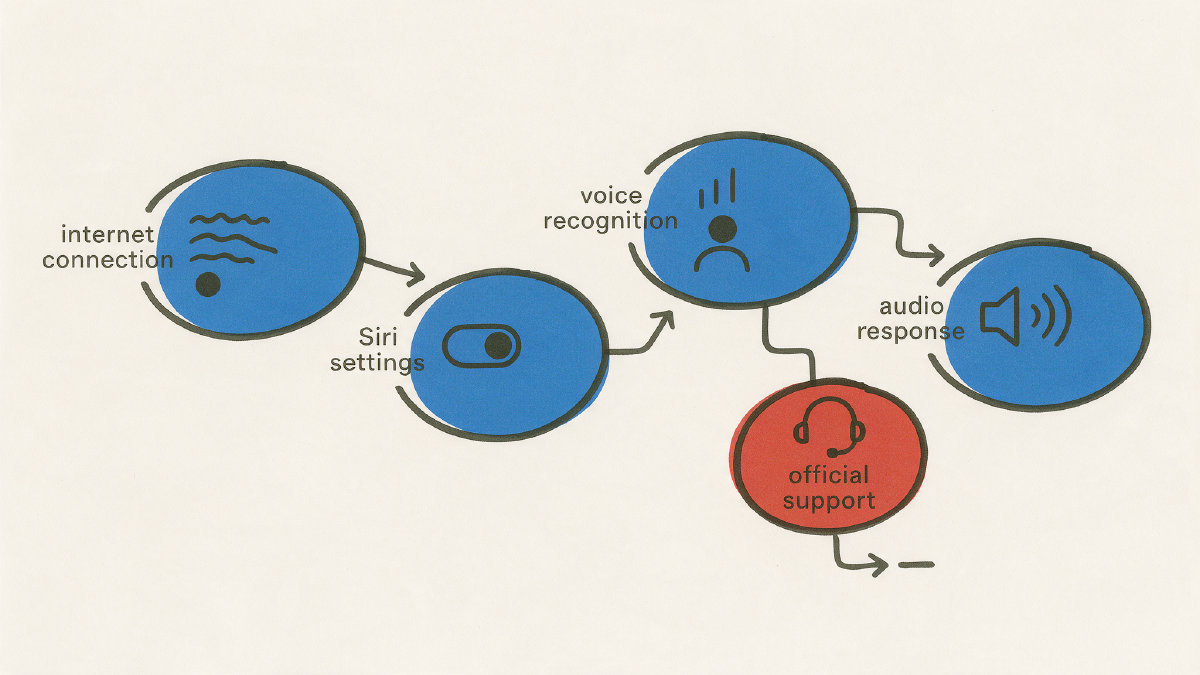
Let’s look at what to do if you’re experiencing issues using Siri on your iPhone or iPad.
Check Internet Access
If you suspect that the error involves Siri itself, check your device for an active Wi-Fi or cellular data connection. If your internet connection appears to be working, move on to the Siri settings checks below.
To double-check your network connectivity, open another app or website and confirm that your iPhone or iPad can actually get online over Wi-Fi or cellular.
Turn On Siri
You can also review the status of Siri on your iPhone by opening the Settings app, scrolling down to find the Siri option, and tapping it. Alternatively, you can open the Settings app and tap on Apple Intelligence & Siri instead, depending on which version of iOS you are running. You should see a “Turn On Siri” option if Siri is disabled. Tap it and follow the setup options onscreen.
The Siri option may be hidden behind other settings if you haven’t used it yet. That’s normal.
Restore the Wake Phrase
On most devices, Siri will use a particular phrase (“Hey Siri”) to start listening to you. But some people have changed their phone so that it only responds to the “Siri” phrase rather than the more vocal “Hey Siri.”
That said, sometimes these settings can become corrupted, which means you don’t hear the response from Siri after uttering “Hey Siri.” To restore the wake phrase, you must navigate to the wake-request setting, and toggle it off and on again.
Go to Settings > Siri > Requests, and make sure “Siri” or “Hey Siri” is turned on. If it’s already on, turn it off and back on again.
Or go to Settings > Apple Intelligence & Siri > Talk & Type to Siri, and make sure “Siri” or “Hey Siri” is turned on. If it’s already on, turn it off and back on again.
Retrain Siri to Recognize Your Voice
One of the ways that we’ve learned to improve Siri performance has been by retreating to the training features that are available within both iOS and macOS. For example, on iOS, you can train Siri to understand the specific voice that you want it to respond to by going to Settings > Siri > Requests, or Settings > Apple Intelligence & Siri > Talk & Type to Siri, turning “Siri” or “Hey Siri” off and back on, and then saying each command shown on the setup screen. Doing so helps Siri recognize how you pronounce words and improves your results over time.
When the Siri setup screen appears, there is a similar training procedure involved where you say each command (e.g., “Send message to John Doe” or “Play music”), and say each command out loud to ensure that your voice is being recorded properly.
However, even if Siri seems to pick up on the correct spoken command, it might fail to provide a reply. In that case, you might be dealing with a problem related to how Siri is receiving and processing your spoken request.
If you suspect that Siri isn’t responding to your speech, you might be dealing with a problem related to how Siri is responding to your speech, however. There are still several options to explore in this regard. First, consider trying to type or press a button instead, since those actions bypass Siri altogether.
In iOS, tap Continue on the Siri setup screen. If you’d prefer to just speak out loud, you can simply say each command (e.g., “Play music” or “Call my mom”) instead, and then tap Done.
Another way to invoke Siri is to simply press a button on your iPhone or iPad, although this option may not always appear. The available option varies by device and iOS version, but the goal is simply to use typing or a button to get Siri’s attention.
Review Siri Responses
Siri normally replies with audio responses, although there is an option for some users who want Siri to respond solely via text. When you begin interacting with Siri, you might find that Siri seems to listen, but doesn’t respond with any audible replies. Instead, the device might simply respond via text. However, there is another possible explanation, which is that Siri itself is functioning correctly, but you simply aren’t hearing the response because of volume or speed-related reasons.
Again, this can vary from device to device and from user to user. One approach is to test how Siri interacts with your device and whether you hear the reply that follows your commands. If not, check your device’s volume and playback speed settings.
Navigate to Settings > Siri > Responses, or Settings > Apple Intelligence & Siri > Responses, and tap “Prefer Spoken Responses” to hear Siri’s spoken replies. If you have trouble hearing the spoken response, check your speaking volume, or or adjust Siri’s speaking speed if its pace is making the reply hard to follow.
Review the Microphone Privacy Settings
If your microphone is muted or blocked by a different application, that could explain why you aren’t hearing anything back from Siri. So one of the easiest ways to troubleshoot this particular scenario is to review the microphone access preferences within the Privacy & Security menu.
Open Settings, and tap on Privacy & Security > Microphone. Look for the apps that have requested microphone access to date, and make sure that they’ve been granted permission to use the microphone on your iPhone or iPad. The list shows every app that has requested microphone access, so an app that is not listed has not requested that permission.
If an app that might be interfering with your microphone use has access turned on, turn that app’s Microphone switch off temporarily and test Siri again.
Examine Existing Software Profiles
Some users report that they’ve had trouble accessing Siri when connected to their home Wi-Fi network through a personal virtual private network (VPN) profile. Although I’m not entirely convinced of that, the fact remains that some users seem to be unable to access Siri while on their Wi-Fi connections. Other users report that the same problem occurs on their work networks.
I’m also aware that many users have reported that they can’t activate certain commands (such as playing music) when connected to their home networks. Apple’s guidance points instead to Siri availability, features, and commands varying by language, country, and region.
It’s also worth noting that some users report that they can’t activate certain Siri commands at all. They might be unable to play music or receive messages, for instance, if their iOS device supports a particular region and language, but their local settings do not match the supported languages.
Finally, keep in mind that Siri AI and Apple Intelligence are still in development, so it’s quite possible that these services won’t function exactly the way you expect.
Ensure that Siri Is Installed on Your iPhone or iPad
At the very least, your iPhone or iPad should be running iOS 7 or later. If it’s not, then there’s little point in worrying about Siri AI. That only covers basic Siri; Siri AI (Beta) also requires compatible hardware, the 27.0 software release (which Apple’s announcement also labels as its 2027 software release), supported language and region settings, and enough available storage.
As with the availability of new iOS features, some older devices won’t support newer Siri capabilities, depending on the region you live in. Check Apple’s site to learn which devices support Apple Intelligence and Siri AI (Beta).
You can also check whether your device is set to English (U.S.), or any other language that Siri AI is designed to support. Check Apple’s current language and region support for the feature you need. Many Apple Intelligence features are available in most regions on compatible devices, but Siri AI is not available initially in the EU on iPhone, iPad, and Apple Watch.
Make sure that your iPhone or iPad has enough storage space to run the latest updates, too.
Update the Software
If your iPhone or iPad is missing some of the capabilities provided by the latest iOS updates, such as support for additional languages, you can update your software to get the latest capabilities. For Siri AI and the next-generation Apple Intelligence features, eligible devices need the 27.0 software release—the same 2027 software release Apple describes in its Siri AI announcement.
If your iPhone or iPad is no longer capable of supporting Siri or Siri AI (Beta), however, you might be out of luck, as you might be restricted by the limitations of your particular device and its software. Don’t worry, though; Apple usually makes it clear what features are not compatible with your particular device or software.
Get More Help With Siri
Apple provides detailed help with its products, including its Siri assistant. If you’re having difficulty finding the solution to your particular problem, you can always ask Apple Support directly.
And if none of the above solutions works, don’t reset or erase your device based on a guess. After all, the list of items that Apple provides to troubleshoot and solve common consumer issues isn’t exhaustive.
Consumer vs Developer Troubleshooting
Keep in mind that the information outlined here is designed specifically to troubleshoot issues with consumer versions of Siri. Developers, meanwhile, need to take care when debugging errors involving Siri intent, App Intents, and Shortcuts.