Troubleshooting · Gaming Platforms
PS5 Errors: Look Up Codes and Try Safe Troubleshooting
Guide details
- Written by
- Truly Helpful Guides
- Published
- Last updated
On this page10 sections
You should first copy the exact error code from your PS5. You can look it up on PlayStation’s official error-code lookup tool, which will show you how to fix it. Otherwise, don’t assume that guessing by the prefix (e.g., “NW” for network) will tell you what exactly is wrong.
PS5 error categories
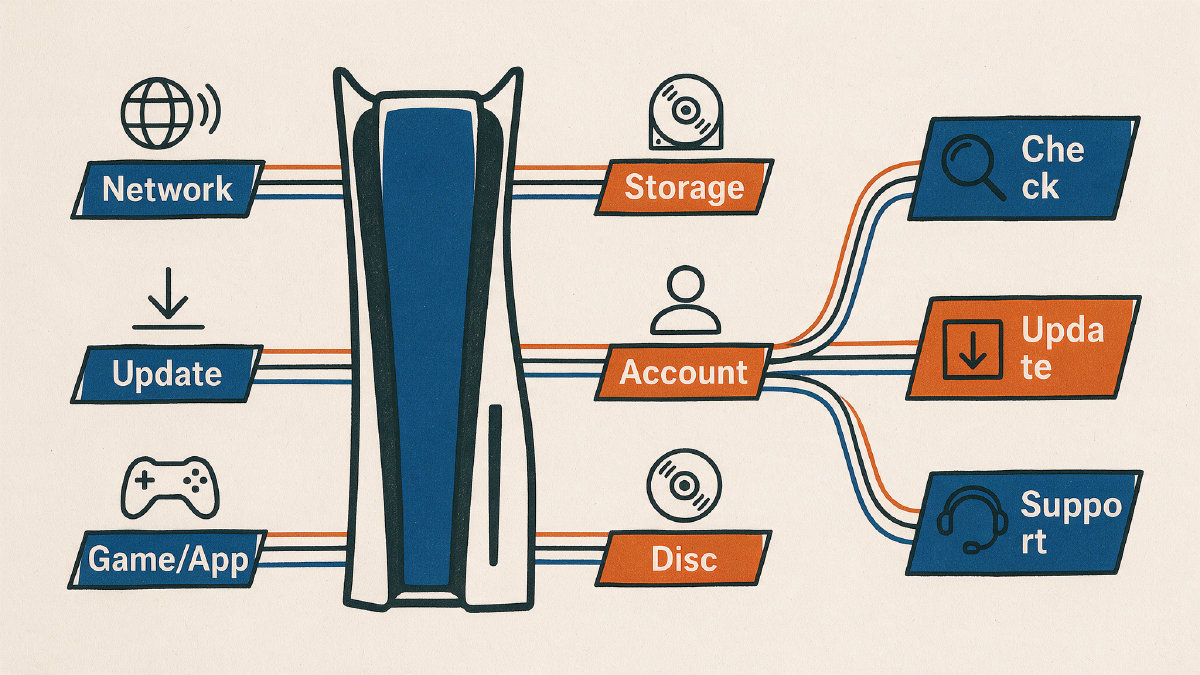
PlayStation categorizes errors into groups that may share a common cause, but do not prove one exact reason. Some of these are:
Network/service problems
Update problems
Account or restriction problems
Application or game problems
SU startup or update problems
In some cases, though, an error code may be the only clue you have. It could indicate that there was a problem with either your Internet connection, your PlayStation service, or the console itself.
Network and service errors
If your Internet isn’t available, your console might fail to connect to the PlayStation servers. If the connection is too slow or unstable, the service could fail. In some cases, the problem could lie within the PlayStation service itself, which can be checked at PlayStation’s service status page. Other possibilities include problems connecting to the internet through your router and modem, and other hardware issues.
First, make sure your console has a working Internet connection. The PS5 doesn’t require an Ethernet cable to connect to the Internet — it can use either Wi-Fi or a wired LAN connection for communication with the PlayStation service. If your PS5 is unable to connect to the Internet, try using a wired LAN connection. See our tutorial here for help setting up your PS5’s network settings.
Otherwise, check the following options:
Internet unavailable
Network timed out
Connection to PlayStation failed
Slow or unstable connection
Under maintenance
Unable to connect to the server
PlayStation service status
Settings > Network > Settings > Set up Internet Connection
Wired LAN connection
System software update errors
The PS5 includes several updates, so if you’re experiencing problems connecting to your PlayStation service, those updates may need to be downloaded manually. To see them in detail, visit PlayStation’s official documentation on system software updates.
PlayStation documents four paths to updating your PS5’s software. First, via the normal Settings menu, then through Safe Mode, and finally via a manual update. This final option involves downloading an update file and running it through the console’s USB port.
NP-102946-2: “Please install the latest update file.”
NP-102944-0: “Please install the latest system software.”
CE-108889-4: “Install the latest system software”
Settings > System > System Software > System Software Update
Safe Mode
Hold down the power button on your PS5, releasing it after you hear the second beep, indicating that the console has entered Safe Mode. From here, go to “Update System Software.”
FAT32 or exFAT
PS5/UPDATE/PS5UPDATE.PUP
System software reinstallation
There’s a chance you’ll eventually need to reinstall your PS5’s system software. Doing so deletes all your data and returns the PS5 to its factory state, which means everything will have to be reinstalled or set up again.
Reset PS5 (Reinstall System Software)
Deletes all data on your PS5
Last troubleshooting step before turning to support
Factory reset
Official PlayStation system software
Game and application errors
It’s possible that the PS5 is encountering problems with specific games or applications. As with any software, problems may occur during the initial launch, while running, or after a game/app patch. Check that both the application and your console have been updated to their latest versions. Otherwise, consult PlayStation’s documentation or contact support directly.
CE-108255-1: “Game or application error”
CE-100005-6: “Cannot load this game or application”
CE-106439-3: “Application operation error”
Check the application updates
Check the installation/update status
Storage errors
Sometimes the PS5 reports storage-related issues, such as insufficient free space on your internal SSD, or that an external drive is unreadable. Don’t interpret this message as an immediate reason to format or replace your hardware, however; the message is intended to identify which area needs to be inspected, not to imply that formatting will resolve it.
CE-100028-1: “Not enough free space on the SSD”
CE-107872-5: “Not enough free space on the console storage”
CE-100006-7: “External storage drive not recognized”
CE-109737-7: “USB storage device not recognized”
Disc and drive errors
A disc cannot be read by the PlayStation if either the disc or the disc drive is defective, if you’re using the incorrect disc, or if there’s a mismatch between the disc you inserted and the disc you’re trying to access. When you insert a new disc, the PS5 attempts to determine whether it contains valid content, and the PS5 may not recognize the content as being compatible with the console. In some cases, this will prompt a message asking you to confirm that you want to play the game.
CE-110538-8: “Failed to read Blu-ray disc”
CE-110555-7: “Disc cannot be read”
CE-107649-7: “Inserted content differs from installed data”
SU-101312-8: “Blu-ray Disc drive does not exist”
Account and support errors
When problems persist, you can ask PlayStation Support or Repairs for assistance. Some codes appear to be related to a particular account, others seem to suggest that a console is faulty.
WS-116331-5: “Access to PlayStation has been temporarily suspended”
WS-116332-6: “Console access prohibited or unavailable”
NP-102942-8: “Age restrictions are currently active”
NP-102955-2: “Account information incorrect”
WS-116329-2: “Sign-in ID or password mismatch”
Some WS codes refer to PlayStation Plus membership, whereas NP codes refer to entitlements. Others refer to payment-method information.
WS-116331-5: “Access to PlayStation has been temporarily suspended”
WS-116332-6: “Console access prohibited or unavailable”
NP-102942-8: “Age restrictions are currently active”
NP-102955-2: “Account information incorrect”
WS-116329-2: “Sign-in ID or password mismatch”
Some codes appear to relate to the PlayStation subscription itself, including the requirement to verify a subscription. Others appear to relate to cloud save information. Again, these messages may suggest that you delete the license, app, or cloud-save entry, or that you reinstall the app. However, these actions are not guaranteed to resolve the issue.
NP-104291-7: “License information cannot be confirmed”
CE-107255-0: “PlayStation Plus subscription cannot be confirmed”
CE-118415-0: “Subscription may need verification”
CE-118851-4: “Cannot sync save data with Cloud Storage”
At some point, home troubleshooting should stop. That could be when the safe mode fails, or the update fails, or the manual update fails, or when the console simply refuses to start properly, despite all efforts to restart it. Persistent symptoms could also include a failure to connect your HD camera or PS Camera, or problems connecting to audio devices. If you suspect that there’s a hardware issue, visit the PlayStation Repair diagnostic tool on your PC and select the issue you’re having so it can guide you through the next repair steps.
SU-101337-5: “Console did not start properly”
CE-111161-1: “HD camera or PS Camera connection”
CE-109531-9: “Audio device connection issue”
PlayStation Repair diagnostic tool
Contact PlayStation to arrange repair
Finally, here’s how I personally approach dealing with an error code:
First, look up the complete code.
Next, match the safe category checks to the code.
Only if they fail, move onto destructive steps (which destroy existing data).
Move to official support once you’ve followed PlayStation’s documented system-software path, or if your console is still exhibiting persistent hardware symptoms.