Troubleshooting · Login Problems
Edge: Too Many Requests in Yahoo Mail or Thunderbird: What to Try
Guide details
- Written by
- Truly Helpful Guides
- Published
- Last updated
On this page9 sections
- Why does this label appear outside of Microsoft Edge?
- How can I resolve the “Too Many Requests” issue in Yahoo mail?
- Isolating the session
- Extensions and other software
- What is causing the “Too Many Requests” error?
- Thunderbird and the “Too Many Requests” error
- Fixing Thunderbird: Changing Thunderbird’s Yahoo account settings
- A note about Thunderbird
- Sources
When you encounter the Edge: Too Many Requests message, don’t assume it’s a problem with your password.
It could be triggered by the login rate or authentication processes, and not by Microsoft Edge itself. But how do you know for sure? That depends on the situation, but here are a few ways to test it out. Let’s start by looking at what causes this error, followed by troubleshooting steps and workarounds.
Why does this label appear outside of Microsoft Edge?
The Edge label may appear within other web browsers, as well as in email clients such as Mozilla Thunderbird. It may show up when using an AT&T / Yahoo account, or perhaps on your Linux desktop or other device.
In short, “too many requests” can occur outside of Edge-the-browser. The Edge label is associated with embedded authentication or browsing capabilities. If the Edge label appears when you use Chrome, Firefox, Brave, Safari, Thunderbird or another client, then it doesn’t indicate that the problem stems from Microsoft Edge or even Microsoft itself. Instead, you’ll need to isolate it to your particular usage scenario.
How can I resolve the “Too Many Requests” issue in Yahoo mail?
If you have received an Edge: Too Many Requests error, the simplest solution is to wait — either for a period of time, or until the service becomes available again.
You should try a fresh session without restarting any apps. In addition, stop retrying sign-in. After some time has passed, restart your browser, or try opening another one.
The network can also matter. In one Thunderbird bug report, a public network produced the error, while a different network showed Yahoo’s normal authentication prompt, so try another connection if one is available.
Otherwise, there are additional tips:
Pause repeated sign-ins
Use private browsing mode
Try updating your browser
Try a different browser
Remove and re-add the account
Clean the cache and cookies
Avoid using a third-party app that attempts multiple logins
Try a different IP address
Wait a while before retrying
Isolating the session
If the Edge: Too Many Requests message occurs within a specific browser, the first step is to try clearing its cache and cookies. While doing so, avoid signing in, and instead close the browser entirely.
You can then open a new browser window, ideally in InPrivate mode if supported. Make sure you’ve updated it to the latest version, and avoid using extensions unless absolutely necessary.
If possible, switch to another browser entirely and see if it resolves the issue.
If you continue to run into problems, consider turning off all of your browser extensions, and try a clean profile without anything else loaded.
Extensions and other software
Sometimes, a browser extension can cause an increase in login attempts. You can test this theory by disabling all extensions in the browser, or by using a “no-extensions” mode if supported by your browser. Clean profiles can help, but they’re not guaranteed fixes.
If you’re not experiencing issues when using another browser, you might suspect that your local security software or firewall isn’t interfering with the connection. However, there are no guarantees that eliminating those possibilities will solve the issue.
What is causing the “Too Many Requests” error?
There’s no universal fix, but several scenarios can lead to this problem, including temporary rate limits imposed by the Yahoo! or Microsoft systems themselves, as well as network-level limitations.
The best way to troubleshoot is to compare the different paths to access the webmail and your mailbox. For example, can you access it via your mobile phone? Can you access it through another browser, like Safari, or from your laptop and desktop?
Can your household accounts all access it? Are the problems occurring at a particular time? Does it happen only once or twice per hour? Is it affecting your entire household? These questions can point to the root cause.
Unfortunately, none of these tests guarantee success. Sometimes the problem will resolve itself after waiting, sometimes not. When the problem continues to exist, however, it’s best to try accessing the service using its official website, or its mobile app. If neither works, report it to Yahoo! directly, and check in with your local network administrator as well.
Thunderbird and the “Too Many Requests” error
If you use Thunderbird, the Edge: Too Many Requests error might mean that Thunderbird was blocked by the remote server due to excessive requests.
First, make sure that you’re able to access your Yahoo! Webmail from your web browser. You can verify whether your Thunderbird configuration is correct by checking whether Thunderbird is able to connect to your Yahoo! Webmail account. To test this, you can manually enter your username and password, or ask Thunderbird to attempt to connect automatically.
Next, confirm that you’re not repeatedly removing and re-adding your Yahoo! account. Each removal attempt will count against the limit.
Finally, check whether multiple Yahoo! accounts are checking for messages at startup or on timers; staggering those checks can reduce the request load.
Fixing Thunderbird: Changing Thunderbird’s Yahoo account settings
If you receive the Edge: Too Many Requests error after configuring Thunderbird, you may be unable to access your Yahoo! mailbox. In that case, it’s best to wait and see whether the issue resolves itself.
However, you might want to temporarily change Thunderbird’s configuration for Yahoo! mail, especially if you can’t log in otherwise.
This option allows you to activate Yahoo!’s secure sign-in method rather than weakening your overall account security. To activate Yahoo!’s secure sign-in method, follow these instructions:
Open Thunderbird, then go to Tools > Account Settings
Select the Yahoo! account in the list, click “Account Actions” at the bottom left, then click “Remove Accounts” to remove it
Click “Add Accounts” and type in the email address and password
Thunderbird will then automatically activate Yahoo!’s secure sign-in method for the account
Alternatively, navigate to the Yahoo! mail page, and click the “sign in” link to create a Yahoo! account, then add it to Thunderbird
If the secure sign-in flow is still failing, remove the account and set it up again:
Go to Tools > Account Settings
Select the Yahoo! account in the list
Click “Account Actions” at the bottom left, then choose “Remove Accounts”
Click “Add Accounts,” type in the email address and password, and let Thunderbird activate secure sign-in automatically
Yahoo! passwords: What you need to know
While you’re logged in to Yahoo!, you might also want to check your app passwords, especially if you’re using an older client application.
An app password is basically a special password used specifically for an individual app, or set of apps. You might use an app password if you’re using an older client program (like AOL 9.0) or setting up two-step verification.
You should never use your normal user account password to sign in to an app, especially an app that requires two-factor authentication. Instead, generate an app-specific password, and use it instead. That app password stays valid until you sign out or remove access to the app, at which point you’ll need to create a new one.
You can generate and manage third-party app passwords through Yahoo’s app-password settings, using Yahoo’s help instructions for app passwords.
If you use two-step verification, you may need an app-specific password for an older mail client. If you don’t use an app password and you don’t enable two-step verification, you might not be able to log in to your Yahoo! account using older applications, like third-party clients or programs that aren’t supported by newer versions of iOS or Android.
POP and SMTP configurations for Yahoo!
The POP and SMTP servers for Yahoo! are pop.mail.yahoo.com and smtp.mail.yahoo.com. Both support SSL/TLS encryption, along with various forms of authentication.
The ports are:
Port 995 for POP3
Port 465 for SMTP
Port 587 for SMTP
All of these connections require authentication, though each port is used in a slightly different context.
For advanced users who need to configure a desktop mail client manually, the following table shows the POP and SMTP values that can be used:
Connection Type Server Port SSL/TLS Authentication
POP3 Pop.mail.yahoo.com 995 Yes
SMTP Smtp.mail.yahoo.com 465 Yes
SMTP Smtp.mail.yahoo.com 587 Yes
These options should be configured under the advanced options of the mail client’s settings.
A note about Thunderbird
Microsoft provides its own manual on connecting to Microsoft Exchange via Outlook, Thunderbird, and similar clients. There are no manuals provided by Microsoft for connecting to a Yahoo! account. We therefore provide our own instructions based on our experience.
Again, please remember that we recommend using your favorite web browser or mobile app to access your Yahoo! Webmail account. If you still have trouble accessing your account, contact Yahoo! Support directly.
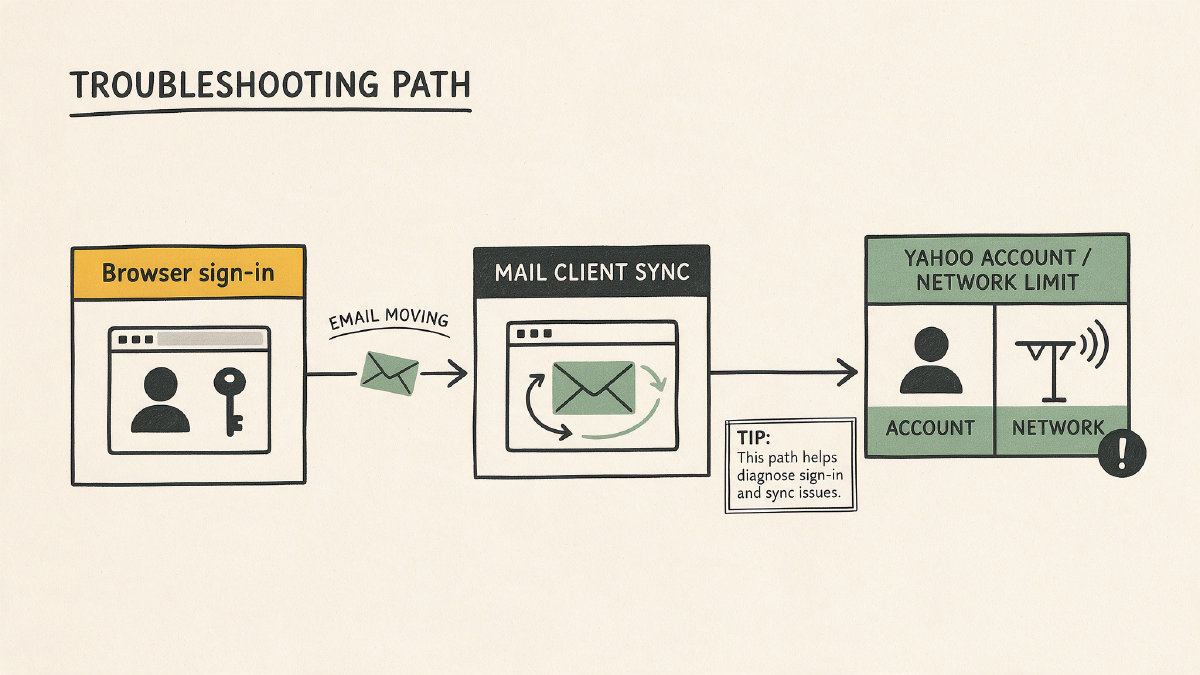
We recommend contacting Thunderbird support and reporting that you can’t connect to your Yahoo! account if it seems to be related to Thunderbird’s behavior, and otherwise report it to Yahoo! directly. No universal client-side solution exists for this issue.
Sources
- edge say too many requests when trying to sign in to yahoo mail - Microsoft Q&A
- Edge: Too many requests | Tech Support Guy
- 1992192 - Yahoo account creation failure instead of auth prompt - Edge: too many requests.
- Ways to securely access Yahoo Mail | Yahoo Help
- POP access settings and instructions for Yahoo Mail | Yahoo Help