Troubleshooting · App Fixes
iMessage Activation Problems on iPhone: Safe Checks to Try
Guide details
- Written by
- Truly Helpful Guides
- Published
- Last updated
- Sections
On this page8 sections
iMessage activation problems on iPhone, including FaceTime activation, can occur, but only in very specific ways. Apple’s troubleshooting path applies when you see “Waiting for activation,” “Activation unsuccessful,” “An error occurred during activation,” “Could not sign in, please check your network connection,” or “Unable to contact the iMessage server. Try again.” Here are safe checks you can perform before repeatedly changing your settings.
When an iPhone has been set up and it’s trying to activate FaceTime and iMessage — which it will do as part of the setup process — it sends a message to Apple’s servers indicating its presence. When that message arrives successfully, FaceTime and iMessage will be activated. However, some errors may occur during this activation process.
For instance, if your iPhone fails to activate iMessage and FaceTime because the device itself doesn’t have network connectivity, the error messages will reflect this. If something happens with your carrier (such as the carrier charges for SMS), that will also show up in the error message.
But if your iPhone activates iMessage and FaceTime successfully, there’s little need to do anything else. So, what should you do when an iPhone fails to activate iMessage and FaceTime? The answer is to check off the prerequisites that Apple says you need to meet to enable these services, and then try turning them off and on again, and restarting the iPhone.
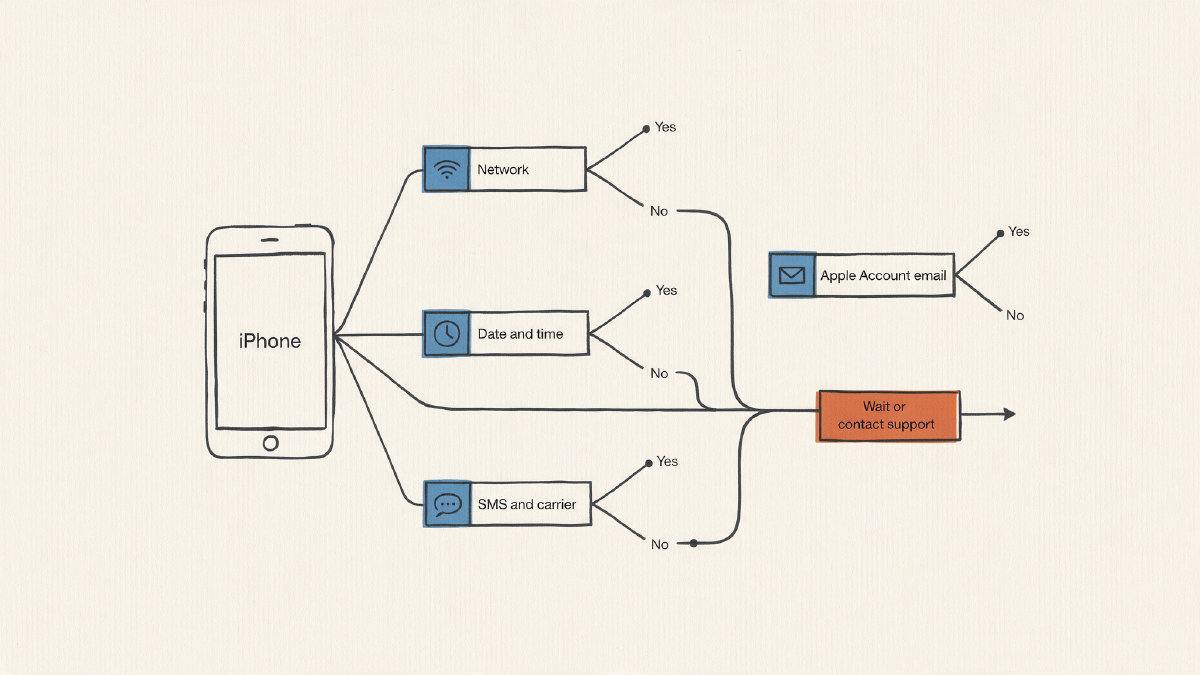
You’ll want to verify that your iPhone has Wi-Fi enabled, or cellular data connected. It should have the latest version of iOS installed, and its time zone should be set correctly in Settings > General > Date & Time. It needs to be able to access FaceTime and iMessage by phone number, email address, or both. Phone-number activation also needs SMS messaging, and if your carrier may charge for that SMS, tap “Turn On” when the prompt appears.
Where Is iMessage Enabled?
If the activation sequence fails, it could mean that your iPhone simply isn’t able to complete the activation step. That’s where you can check the Messages app for information.
Within the Settings app, open Apps > Messages. Toggle the switch for “iMessage” and then tap “Send & Receive.” This shows the phone numbers and/or email addresses that you’ve associated with FaceTime and iMessage.
Apple says that FaceTime and iMessage will use either your phone number or an email address, or both. As long as you’ve added one of those options, the iPhone should be able to connect with Apple to begin the activation sequence.
How To Restart FaceTime and iMessage
If the iPhone fails to activate iMessage and FaceTime, you’ll need to try restarting the two services, according to Apple’s recommended safe troubleshooting steps. In addition, you’ll need to make sure that your iPhone is completely restarted between disabling and re-enabling FaceTime and iMessage.
To disable FaceTime and iMessage:
Within the Settings app, go to Apps > Messages and turn off the toggle for “iMessage.”
In Settings, go to Apps > FaceTime and turn off the toggle for FaceTime.
Once they’re turned off, restart your iPhone.
After the iPhone restarts, return to Apps > Messages and turn iMessage back on, then go to Apps > FaceTime and turn FaceTime back on.
What To Do If Your iPhone Can’t Activate FaceTime or iMessage
You might find yourself unable to activate FaceTime or iMessage on your iPhone due to the inability of the iPhone to reach Apple’s servers to authenticate. Apple offers an online path to activate FaceTime and iMessage using your Apple ID, so you can follow that.
From any web browser, visit apple.co/IMFT-mac, and sign in with your Apple account. Then click “Enable Apple Account,” and proceed to “Get Started.”
Next, you’ll be asked to enter your password. Click “Sign into your Apple Account” and enter your Apple ID and password. Once logged in, you’ll be asked to enter the phone number that you used with FaceTime and iMessage, and then to confirm your email if your account is ready.
You can choose whether to receive FaceTime and iMessage through your phone number, or an email address instead. If FaceTime and iMessage appear on the list of accounts below, they’re available to activate. Otherwise, they’ll appear once your account is ready.
iOS 26 and Later New-iPhone Scenarios
With the release of iOS 26 and new iPhones, activating eSIM may now take precedence over traditional activation scenarios. Some users have found that after setting up an eSIM, their new iPhone won’t activate iMessage, even though it works otherwise. Until the service is properly activated, messages may trigger a Not Delivered alert, appear as green SMS/RCS bubbles, or come from your email address instead of your phone number. If it doesn’t activate automatically, go to Apps > Messages and turn iMessage off and back on.
Verifying Your Phone Number With a Carrier
There’s also a way that Apple asks your carrier to confirm that your iPhone has been verified, and Apple provides support to assist you with that process. However, if verification is taking longer than expected, Apple suggests that you wait up to 24 hours for this to happen. If verification doesn’t happen, Apple suggests contacting your carrier directly and asking them to verify your number.
If your carrier does charge for SMS, be aware that activation may use SMS messaging, and your carrier may require that you can send and receive international SMS messages. Depending on your carrier, these messages may involve SMS charges, and the verification attempt will be automatic.
The safest approach, Apple recommends, is to allow Apple and your carrier to handle the verification of your phone number. After 24 hours, contact your carrier directly and ask them to verify your number. They can also assist you with enabling your phone number to send and receive international SMS messages.
Wait For Verification
Your iPhone may take up to 24 hours to verify your phone number, according to Apple. You can see if your iPhone is attempting to verify your phone number next to your phone number, which displays a spinning gear.
If your iPhone is trying to verify your phone number, don’t keep toggling FaceTime and iMessage on and off. Rather, wait for the verification process to complete.
Email-based iMessage
If your Apple account isn’t verified yet, consider sending and receiving FaceTime and iMessage via email instead. Simply add your email address to the Send & Receive section of Messages. If you’re still seeing a message such as “An error occurred while activating iMessage or FaceTime” with a “Get Help” button, wait for Apple to finish verifying your phone number, and then try again. If you see “iMessage or FaceTime Activation Failed. This account is blocked due to reported spam,” or you completed the online activation request but received no email, Apple says the account is likely blocked and the request to remove the block was not approved.
Otherwise, contact Apple for help with verifying your account or number. Or contact your carrier and ask for assistance, if that’s the issue. If the issue is with your account or number, contact Apple; if it’s carrier-related, your carrier can help check SMS service and number verification.