Troubleshooting · Helpful Guides
AOC Monitor Says Input Not Supported on Windows: Fixes to Try
Guide details
- Written by
- Truly Helpful Guides
- Published
- Last updated
- Sections
On this page16 sections
- What Does the “Input Not Supported” Message Actually Mean?
- How to Fix the “Input Not Supported” Error on Your AOC Monitor
- Plug in a known-working cable
- Use a different GPU port
- Make sure your cable connections are secure
- Make sure that your monitor is powered on
- Check that the monitor has the correct input selected
- Try a different monitor
- Resolution plus refresh rate
- Boot
- Wake from sleep
- Full-screen game switching
- OSD Menu Options
- Force Shutdown or Reboot
- Testing the Monitor
- Sources
If you see the AOC message “Input not supported” or a black screen when trying to connect an AOC monitor to your PC, don’t jump to conclusions. This can be one of many things, including problems with your cable or connection.
When your AOC display displays that error, what does it mean? The message basically says that the monitor is receiving or being asked to use a signal it cannot display. You might see this after you’ve plugged in your new HDMI cable and connected your PC and AOC monitor. If your monitor has only started doing this since you updated its firmware, then there’s a good chance that’s the issue. But you needn’t assume that this problem was caused by any one of those things — it could have been caused by another factor, such as incorrect resolution or refresh settings, or something even simpler than that.
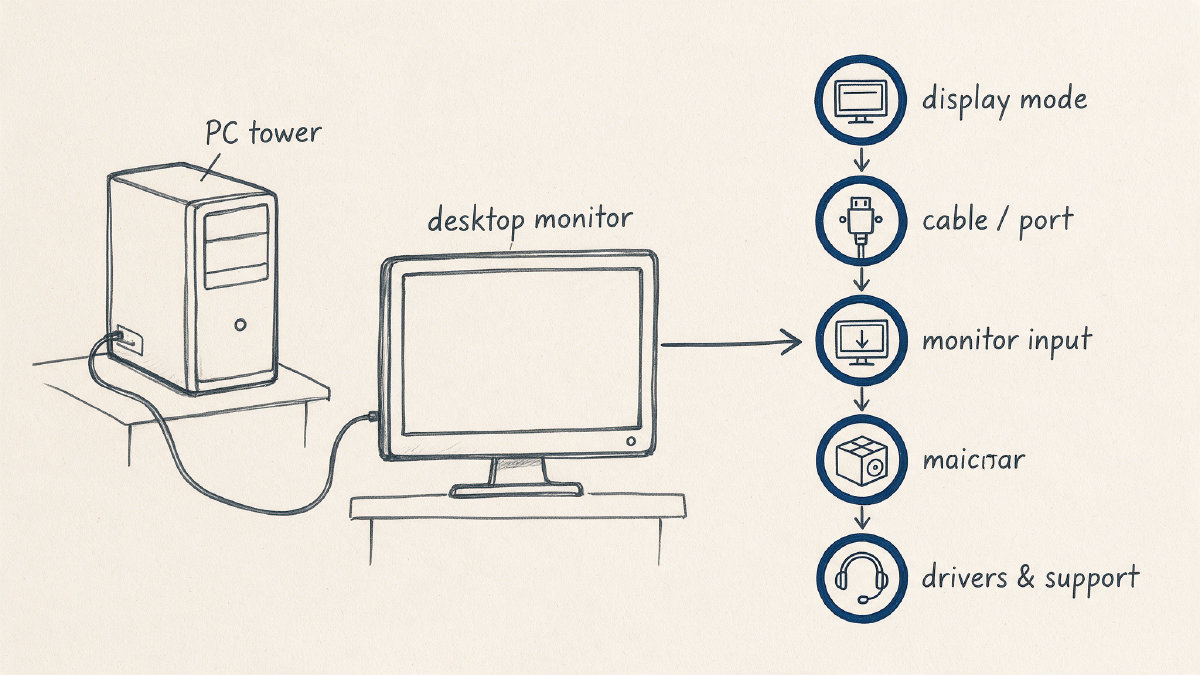
There are a few safe fixes you can try before assuming that you’ve got a defective GPU, display cable, or monitor itself.
Let’s take a look at the AOC monitor input not supported message.
What Does the “Input Not Supported” Message Actually Mean?
Your AOC monitor will let you know if it detects something wrong with the signal that your PC is sending over the cables. In most cases, this means that your graphics card is trying to send the wrong type of signal to the display, or the signal is mismatched between your PC and your display (i.e., you’re sending it too high of a resolution for what your AOC monitor supports).
The message could be because:
You have changed your video driver, software, or other setting
You have selected an incorrect display port
You’ve accidentally unplugged your display cable
You have an incorrect refresh rate selected
You’ve plugged in an HDMI or DisplayPort cable into the wrong port
The solution here is to check whether the cable that you’re using works correctly and ensure that the cable is connected to the right port. Make sure that your AOC monitor is turned on and powered on, and that your PC is also switched on.
How to Fix the “Input Not Supported” Error on Your AOC Monitor
Here are some of the steps you should consider taking if your AOC monitor displays “Input not supported.”
First, do these safe reversible checks before making any changes to software:
Ensure that your PC and AOC monitor are both on and powered up
Check that the cable connecting them is properly seated
Check that you have the correct monitor input selected on your AOC display
Plug in a known-working cable
Try a different monitor
Use a different GPU port
If none of these work, then it might be time to change your graphics drivers.
Make sure your cable connections are secure
One of the most common causes for your AOC monitor to display the “input not supported” error is an improper cable connection. Even though we’ve all seen cables come loose from ports, the same can happen with a USB-C to USB-A or a power cable. That’s why it’s best to always double-check that your PC and your AOC monitor are securely connected to each other.
Also, sometimes plugging in a new monitor cable or moving a cable out of the way can cause the cable to become improperly seated. If the cable becomes disconnected while you’re playing a game, it might also cause a loss of display signal.
Make sure that your monitor is powered on
Even though it seems obvious, sometimes people forget to turn their monitor on. That goes for PCs, too. If you’re seeing a black screen and your AOC monitor is either off or not receiving power, then the display won’t respond at all.
Check that the monitor has the correct input selected
Some AOC monitors offer an Auto function that will allow the monitor to automatically choose which source to display. However, if you select a different display input manually, it may not match what your GPU is expecting to send, causing the AOC display to display the error message.
Plug in a known-working cable
If you don’t have a known working cable, plug in a different one. If your display still doesn’t recognize the image, then maybe you have a defective cable. Otherwise, perhaps your monitor isn’t working correctly, or your GPU isn’t sending the right signal.
Try a different monitor
Connect your monitor to a different PC to determine whether the issue lies with your GPU or monitor. Connect another monitor to your PC instead of the one that’s displaying the error. That’ll help isolate the problem.
Use a different GPU port
If you have multiple ports, use a different one. Plug the cable into a different port on your graphics card and see whether the issue remains.
Why Your Windows Display Can Suddenly Become Unsupported
While an unsupported display is often the result of an incorrect resolution or refresh-rate combination, there are times when your PC will start sending the wrong image size to your AOC monitor when it boots up, wakes up from sleep, or switches to full-screen mode in a game. Let’s look at some of the ways that Windows may cause your PC’s display to suddenly go black.
Resolution plus refresh rate
Windows uses the resolution and refresh-rate combination to determine the number of pixels that can fit onto your display. Together, these define the display aspect ratio and dimensions, which determine how much information you can view on the display. When Windows determines that your AOC monitor doesn’t support a particular resolution and refresh-rate combination, the display will show an error message.
Boot
If your AOC monitor suddenly shows an error during the boot process, you may have an incompatible monitor or display cable. It’s possible that the resolution you previously used is now incompatible with the current refresh-rate setting. That’s more likely to occur if you were running a higher-resolution image than the one that’s currently displayed on your screen.
Wake from sleep
Another possibility is that you simply woke your PC from sleep mode, but didn’t wake your display. This will sometimes cause the display to go black, but you’ll still be able to see your screen.
Full-screen game switching
Switching from a browser window to a game, for instance, can cause your display resolution to shift. The game usually requests the highest resolution available to it, which can create a sudden drop in the display output to the AOC monitor.
An example of what an unsupported AOC monitor might display
In the reported AOC 24G2W1G4 case, Windows was using the recommended resolution and refresh rate, yet the monitor could still briefly reject the signal when the mode changed.
However, it appears that Windows 11 will attempt to set the display to a slightly higher-than-expected resolution and/or refresh rate, leading the AOC monitor to report that it doesn’t support the given input. One workaround to this problem is to change the resolution and refresh-rate settings manually.
Recovering Your Windows Display from the Black Screen
It’s not unusual for a black screen to appear or for an error like “Input Not Supported” to appear when trying to display content on your monitor. While there are a number of solutions you can try to get your Windows desktop back, the first thing you’ll want to do is restart your graphics display quickly.
Here’s how you can recover your Windows display from the black screen or the AOC message, starting with quick recovery options that you can try without having to dig too deep.
The Windows Graphics Restart Shortcut
One option for recovering a visible Windows display is to perform a Windows graphics restart shortcut. There are a number of reasons that your display may stop working, and the easiest way to fix it is to simply restart your display. You can force a restart of the display driver using this shortcut:
Windows key + Ctrl + Shift + B: This restarts the graphics driver
You should hear a beep or see the screen flicker if Windows recognizes the shortcut
Use the Windows+P Keyboard Shortcut
Windows provides you with a number of ways to manage the display, so it’s possible that your AOC display is simply configured incorrectly. You can toggle between your display options using the Windows+P keyboard shortcut. These options include:
PC screen only: Only your laptop or desktop PC screen is used as the display
Duplicate: All connected displays mirror your main display
Extend: Use your secondary display to extend the desktop
Second screen only: Only the second display is used
Once you’ve adjusted your display settings, just recheck that your cable is connected and that your display is on.
Using Safe Mode With Networking
If you’re still unable to find an image using the above methods, you can use Windows’ Safe Mode with Networking. Safe Mode is a basic Windows startup environment that gives you access to essential files and features without the normal startup configuration.
To launch Windows Safe Mode, shut down your PC and wait for 10 seconds before pressing the power button again. Repeat this step two or three times. From here, you can make any necessary changes to the display configuration, as well as update or roll back your graphics drivers.
In addition to updating or rolling back the graphics driver, Safe Mode allows you to access the Recovery Environment. This is a feature that helps you repair or restore your PC.
Fixing Your AOC Monitor’s Settings Manually
Sometimes, the simplest method for fixing your AOC display is to reset your settings to factory defaults. This can resolve issues where you may have accidentally made changes to your settings. You can also consult your user manual to confirm what settings your model requires. In some cases, you can manually adjust the resolution, brightness, and contrast settings.
You’ll need to navigate through the menu on your AOC monitor to change the resolution or refresh rate, although some AOC models allow you to do this directly from the operating system. Either way, it’s worth trying to reset your display settings before concluding that your display is faulty.
OSD Menu Options
OSD stands for On-Screen Display, which allows you to interact with the display’s internal settings. To open the OSD menu, refer to your user manual for instructions on how to access the settings.
Some AOC displays offer an “Auto” input selection option, allowing you to choose from different input options. Alternatively, you can physically select a different input option from the physical buttons on the back of the monitor.
Manual vs. Automatic Input Selection
Many AOC monitors offer a menu that allows you to select from a list of input options. You can also typically press a physical button on the monitor’s back to cycle through the inputs manually. If your AOC display offers either of these functions, you should use them.
User Manual and Monitor Setup Instructions
All AOC monitors provide a user manual to assist with initial setup and troubleshooting. This guide should detail everything you need to know about setting up your monitor, as well as the steps you should take if your display stops working. Some AOC monitors also allow you to download the latest drivers and updates directly from the manufacturer’s website.
Resetting the AOC Monitor’s Settings
Some AOC monitors allow you to reset their display settings back to the default state by selecting a specific button on the back of the monitor. Others provide an option within the OSD menu.
Changing Your AOC Monitor’s Resolution
You can manually adjust your AOC monitor’s resolution from the OS, if your display allows it. Most displays support a range of resolutions and refresh rates, but some require you to access your display’s OSD menu to make adjustments.
Changing the Resolution and Refresh Rate via the OS
If your AOC display supports multiple resolutions and refresh rates, you can choose your preferred settings directly from the Windows Display Settings interface. You can also adjust your display’s settings from the graphics control panel that comes with your display card.
Updating or Rolling Back the Graphics Driver
You’ll want to check whether your AOC monitor is reporting an error due to a software or driver update. Sometimes, this can occur when you install a newer version of Windows or update your video drivers. Fortunately, Windows provides a couple of simple ways to address this issue.
If you’ve recently changed your display settings and they stopped working, then you can safely revert them back to their original settings. However, you should never assume that a graphics driver change alone is the culprit — there are plenty of other possibilities.
Rolling back the graphics driver is a safe way to test whether a recent graphics card change is responsible for the error. If the issue remains, then you can try rolling back further.
Force Shutdown or Reboot
If a driver update seems to be the cause, you can use Display Driver Uninstaller (DDU) to remove the existing NVIDIA driver, then download and install the latest driver directly from NVIDIA. DDU is a third-party cleanup utility, not a force shutdown or reboot tool from NVIDIA. For AMD GPUs, you can also use similar utility programs to uninstall your graphics drivers and return your PC to its previous state.
After changing your graphics drivers, you can reboot your PC and try your AOC display again. If the issue persists, then you can continue to troubleshoot it.
Testing the Monitor
If you can’t get your AOC monitor to display anything, then there’s a very small chance that your PC’s graphics driver is the issue. Otherwise, the problem could be in the cable, the PC, or the display itself. Here’s what you can do to isolate the exact issue.
Test the monitor on a different source
Take the AOC monitor to another device and plug it into that machine to see if it displays anything.
Test a different monitor on the same PC
Take another display and plug it into your PC to see if it displays anything.
Plug the cable into another monitor
If you have a spare display cable, plug it into a known-working monitor and see if the image displays properly.
Replace the cable
Try replacing the cable with a known-working one.
Plug the monitor cable into a different GPU port
Try connecting your AOC monitor to a different GPU port to see if the image displays properly.
Test if the failure follows one device
If you’ve followed the steps above and you’re still experiencing an issue, then you can conclude that the fault lies with one of the devices involved. If you’re unsure which, you can contact AOC support and ask them to help you identify the exact problem.