Troubleshooting · Login Problems
Why SharePoint or OneDrive Says “You Need Permission to Access This Site”
Guide details
- Written by
- Truly Helpful Guides
- Published
- Last updated
On this page9 sections
The exact error message you receive, from either the classic SharePoint site URL (https://tenantname.sharepoint.com/) or a Microsoft 365 OneDrive for Work or School page (https://onedrive.live.com/), will read:
“Sorry, we can’t show this content. You need permission to access this site.”
This generic error doesn’t explain what went wrong, though it might be accompanied by an explanatory note such as “permissions are not configured correctly” or “your sign-in account isn’t recognized.”
The reason you’re seeing this is because there’s some problem with permissions between your identity and the SharePoint or OneDrive site you’re trying to access. But which?
Common permission causes
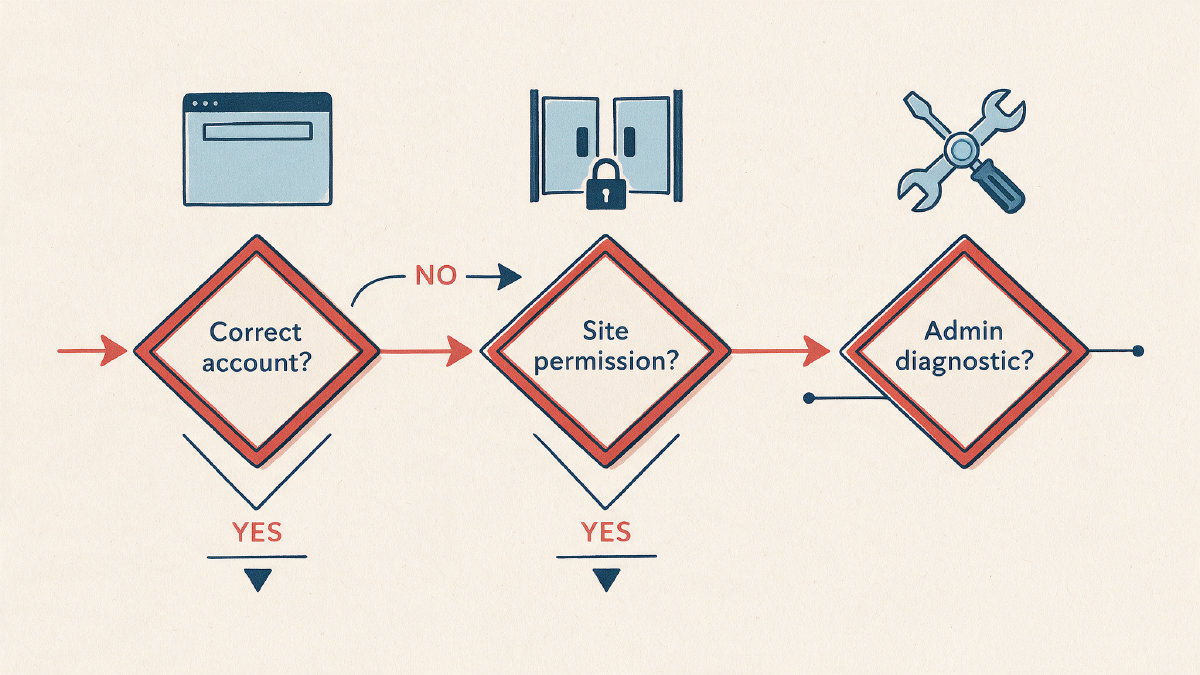
There are three broad possibilities, and you can’t distinguish among them at this level.
One possibility is that you’ve been invited, but your identity is different than the one used in the invitation. For example, if I was invited to view my team site by John Doe (john@company.com) but then signed into the browser session using Jane Smith (jane@company.com), the system would deny me access.
Second, the site itself may have been shared via a link rather than being explicitly shared with my identity, and I’m now accessing the shared item with an incorrect email address (different from the shared-to user). In that case, you should log out and open the link again. If the site was shared to my company’s domain, however, then I can proceed to request access.
Third, there could be a problem within the site itself: maybe I don’t have any access to the site or file. If that’s the case, the site owner or administrator should check whether they’ve granted me access, either directly or through group membership.
Site owners can walk users through the first two checks before escalating.
Test effective permissions
If the site owner is responsible for granting permissions, then the site owner needs to check the site’s actual configuration.
In SharePoint, this means going to the site’s Settings menu, selecting Site permissions, and then clicking on Check Permissions. In the User/Group field, enter the affected person’s name and select Check Now. From here, you’ll review the permissions that person has on the site, as well as any related security group that gives them access.
Similarly, you’ll want to test the same permissions inside OneDrive for work or school, navigating to the Site Settings, then the Site permissions menu, then Check Permissions.
The site owner must ensure that the person experiencing problems has either been added directly or belongs to one of the security groups associated with the site.
If you suspect that the issue stems from an unrelated group, you’ll want to verify the permissions within that group and remove the individual if necessary. If a new user joined the organization or changed jobs within the company, he or she may have been added to the wrong group and therefore lacks access.
Finally, if errors continue for a guest account, the guest account can be removed entirely from the Microsoft 365 admin center. Make sure the user is removed from the site collection, and then grant permissions to the file or site again. That can be time-consuming, but it’s Microsoft’s recommended fallback for stubborn guest-account errors.
For further diagnostic help, the site collection owner should run the SharePoint User Access diagnostic tool, which can pinpoint issues with specific users’ access rights.
Microsoft admin tools
To confirm or rule out issues with your Microsoft 365 subscription, navigate to the Microsoft 365 Admin Center. The tenant-level diagnostics feature lets you check if any problems prevent your users from accessing resources within Microsoft 365. While this isn’t something that the average user can troubleshoot, this diagnostic will flag any problems with the internal components that govern how users authenticate to SharePoint Online and OneDrive.
Note: This feature is unavailable in the GCC High, DoD, and Microsoft 365 operated by 21Vianet environments.
Troubleshooting shared-link failures
If the above options fail, there’s one more step you can take: manually reshare the file or folder. There’s a simple clue to determine if the problem stems from a mismatched browser session, though: When you click on a shared file, the prompt appears to allow or deny access to the file, and then another prompt allows you to share the file or folder. Clicking on the latter should send the file to the correct location, assuming that the correct email address is already part of the file-sharing process. If the prompt asks if the correct person has been sent the file, that indicates that something is still wrong. Try removing the affected user from the site, and then resending the invitation.
What is a site user ID mismatch?
In general, a site user ID mismatch is just about what it sounds like: your Microsoft 365 identity does not match the one expected by the site. It usually happens when someone logs into the cloud using a different UPN (User Principal Name), which corresponds to a unique identifier for the user, rather than his or her original identity. This typically occurs when an employee leaves the company, or after a name change, when both identities still exist within the directory. Active Directory synchronization may cause the employee’s information to be moved within the directory, which causes the UserInfo ID, stored on the server, to become stale. In other words, the directory now thinks that the old identity was deleted, but the new identity is actually new and has its own ID. This is especially common if the user had previously created a OneDrive site and the identity was recreated.
In most cases, however, a mismatch points back to an incorrect account recreation. That is, the user may no longer have a valid login, or he may have created an alternate identity with the same name (but different domain or suffix), and then tried to use it to log in to SharePoint or OneDrive.
How to fix a OneDrive self-access failure
After deleting a OneDrive site, it’s possible that the user cannot access it again. Usually, this points back to a site user ID mismatch — that is, that the existing account does not match the one required. Fortunately, Microsoft offers a documented way to restore the original UPN, which requires that you check whether a new UPN exists, delete it if it does, and then restore the original UPN. Alternatively, you can simply follow the standard steps to resolve a site user ID mismatch.
The Microsoft 365 Site User Mismatch Diagnostic
As the title implies, the diagnostic is designed to find instances where a single user account exists in two locations. This is typically triggered by an accidental move within the directory, or by moving a user to a different organizational unit within the Active Directory forest. Microsoft provides instructions for administrators to run this diagnostic, along with details on what inputs the administrator needs to provide and in what format, as well as the environment where this diagnostic applies.
Administrators run the diagnostic using a SharePoint administrator account.
Who runs the Site User Mismatch diagnostic? A SharePoint administrator account can be used to run the diagnostic, provided that the affected user account is specified, along with the original site URL. In addition, the new account’s UserName property must match the old account; otherwise, the site will point to a different site altogether. Finally, administrators are prohibited from connecting OneDrive sites that may previously have been owned by another user account.
Once these parameters are set, the administrator simply clicks Start. If the diagnostic successfully resolves an issue related to a OneDrive site, the changes might take approximately 24 hours to occur. Note that the Site User Mismatch diagnostic is not available in the GCC High, DoD, and Microsoft 365 operated by 21Vianet environments.
What changes after a mismatch detection?
Once a site user ID mismatch has been detected, the diagnostic essentially removes the old ID from the UserInfo list. The site owner should then assign appropriate permissions to the new account.
If you’re working within SharePoint, there’s also the option to manually remove the old user ID from the UserInfo list and add the new one. This manual approach applies to SharePoint sites or OneDrive sites that don’t belong to the affected user; after removing the old user account, grant permissions to the new one. Where the automated diagnostic is available, however, it’s the cleaner way to do the cleanup.
When to escalate the case
While guests may be denied access to a SharePoint or OneDrive site due to misconfigured permissions, sometimes the issue lies within a separate policy layer that prevents the authentication process. As a result, even if permissions are properly assigned, the guest may still fail to log in. Administrators can look at the Conditional Access policies, cross-tenant access settings, multifactor authentication requirements, device-compliance requirements, external collaboration settings, guest inviter roles, allowed or blocked domains, and B2B collaboration settings to identify the root cause.
Sources
- Access Denied or You need permission errors in SharePoint Online and OneDrive - SharePoint | Microsoft Learn
- Authentication and Conditional Access for B2B users - Microsoft Entra External ID | Microsoft Learn
- Configure external collaboration - Microsoft Entra External ID | Microsoft Learn
- Fix site user ID mismatch in SharePoint or OneDrive - SharePoint | Microsoft Learn