Troubleshooting · Helpful Guides
The Specified URL Cannot Be Found: Safe Checks by Context
Guide details
- Written by
- Truly Helpful Guides
- Published
- Last updated
- Topics
On this page8 sections
When you encounter an error like, “The specified URL cannot be found,” it can be confusing. The visible message is context dependent, which makes it hard to determine whether the problem lies with a missing resource or some kind of response that your browser or application sent back after submitting a form.
In general, a page that does not exist returns an HTTP 404 (Not Found) status code, indicating that the server could not find the requested file. However, a 404 might also appear when a website’s firewall or another layer blocks a request. Similarly, this type of error might occur in the middle of submitting a form, perhaps due to a temporary glitch, or if there’s a misconfigured firewall on the network or on the server side itself.
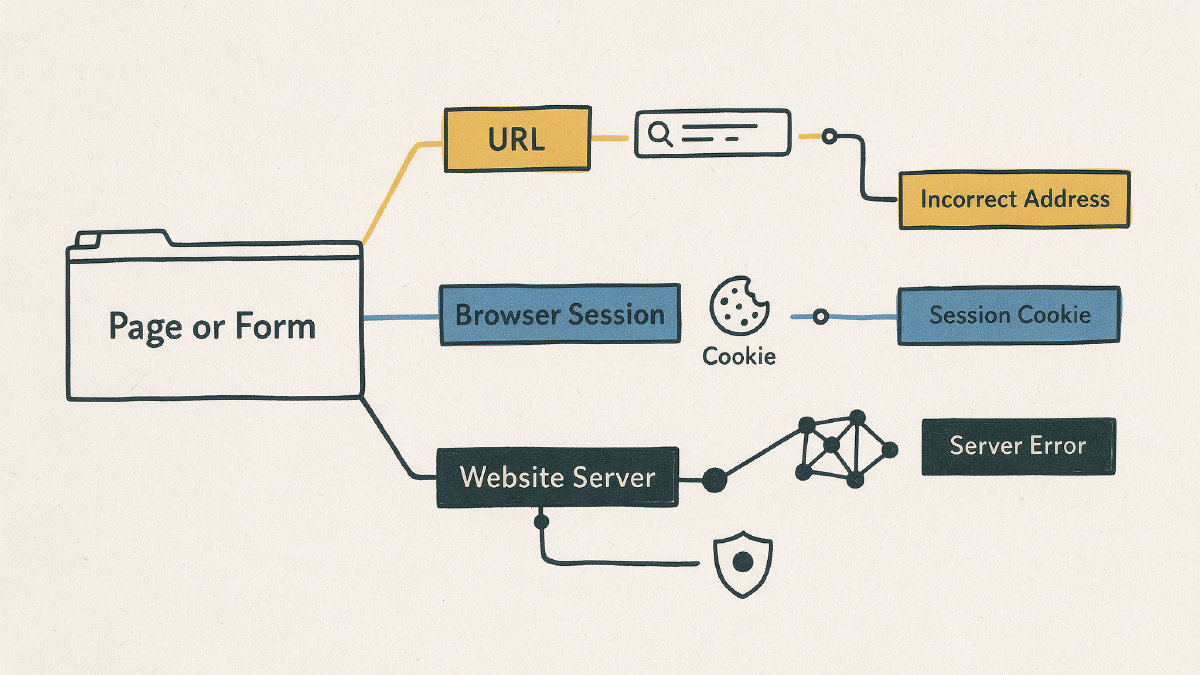
The good news is that there are a few simple checks you can run without causing harm. Let’s start with the easiest.
The first safe check
First, double-check the exact URL and path where the problem occurs. You may have mistyped a letter, which would result in either a dead end or one of the other problems described here. Or maybe a specific page moved, was deleted, or failed to redirect properly. If you submitted content via a form — say, filling out a password or other personal information — then note what you submitted. That data should still be preserved on your device and might be used later for analysis.
If you can confirm that the URL and link path are correct, the next step involves testing in a more controlled environment. One way to do this is to use a browser profile, such as Chrome Incognito mode, so that your browser doesn’t cache anything locally. Alternatively, try opening the site using a different browser entirely.
What those tests tell you depends upon how many cookies you’re using and what they contain. If the failure continues in Incognito mode, the problem is less likely to be tied to the cookies stored in your regular browser profile. On the flip side, if it goes away, the issue might be tied to the cache, the session state, cookies, or extensions. A successful test suggests that regular profile data was involved; continued failure points away from that profile data.
Try cleaning up some cookies
One conservative cleanup option involves Edge per-site cookie removal. If you clean the browser cache, you will need to sign out of any sites you’ve logged into.
On the desktop:
Visit the website in Microsoft Edge, select the padlock icon in the address bar, then select Cookies and site data > Manage on this device.
Click Remove.
You’ll be signed out of the site whose cookies you removed. Sign back in there before proceeding.
Once Edge has removed the cookies for that site, return to it and attempt to reproduce the problem.
If you can’t reproduce the issue, sign in to each account you previously had open to avoid unnecessary frustration. For a more thorough cleanup, repeat these steps within Google Chrome’s privacy settings. On desktop, open Settings > Privacy and security > Delete browsing data, select “Cookies and other site data,” choose a time range, and click Delete. This is broader than removing one site’s cookies, and it is not a guaranteed fix. Incognito does not retain cookies, history, or other site information after the session ends.
Login and session-state issues
Sometimes login details and session state can play a role in how pages behave. When you log in, your browser typically stores a session token or other login information in a cookie, allowing the site to know who you are. If the page is protected, the site must re-authenticate your browser to verify who you are before returning content.
Session expiration isn’t always a certainty, especially if the session is backed up by something like OAuth tokens. This can happen, too, even when you aren’t doing anything special. But don’t assume that it’s been proven.
DNS and network-cache checks
If the resolution seems plausible, then proceed to the next level of diagnosis. In the case of firewalls, DNS flushes might provide relief. But sometimes, it’s worth taking things further. Winsock reset commands, however, might prove intrusive. These are community suggestions that won’t guarantee success, but they can help.
Firewall triggers
This error can appear on the web when a website firewall is configured to respond to requests from certain IP addresses, browsers, or form submissions, blocking them outright. Sometimes, this happens because the submission contained something that made the firewall act. Even a plain-text reference website link can trigger a firewall response, so removing the link may resolve the problem. You might want to remove any links that point to a particular domain, or copy the submission somewhere else so you can experiment safely.
A practical stopping point
If you’ve ruled out everything else, then you’ve done a sufficient job diagnosing the issue. At that point, you should ask for help, letting the administrator know what you checked. There’s no need to become an expert on WAFs and their configurations.
In conclusion
HTTP status codes sharpen diagnosis, distinguishing a missing resource or authentication/authorization failure from a server-side problem. The phrase alone is not enough.