Troubleshooting · Helpful Guides
How to Send a Large Video From iPhone: Best Sharing Methods
Guide details
- Written by
- Truly Helpful Guides
- Published
- Last updated
On this page8 sections
The question of how to send a large video from your iPhone is actually about choosing the method that matches your situation. There are constraints you can rely on, though there’s no single right answer. Are you sending the file to someone nearby, or over the Internet to a remote recipient? If it’s an Apple device, then AirDrop might be a good choice. If it’s Android, then sharing a link might make more sense. Do you need to preserve the original video or just send a copy? Is your sender or recipient’s email service limited by some attachment size, like iCloud?
When it comes to sending large videos from an iPhone, Apple provides a number of methods and tools. We’ll look at each of them in detail, including when you should use which one.
iPhone Photos share-sheet flow
When it comes to sharing large files like photos and videos, Apple has given you several options — including using Mail, Messages, AirDrop, or another app you’ve installed. However, you can also share the video with someone nearby by making sure both iPhones are turned on, unlocked, and have AirDrop turned on, opening the video and keeping it onscreen, bringing the devices together, and tapping “Share.” That’s the easiest way to do it, as long as you’re near them.
If you want to share multiple videos, start from a screen with multiple thumbnails, tap “Select,” tap the thumbnails you want, tap the “Share” button, and then choose how to share them.
Choosing the correct method to share your videos will depend upon what you want to do. Here are the available options:
-
Mail
-
Messages
-
AirDrop
-
An additional installed app
-
Proximity sharing
AirDrop
As we mentioned above, AirDrop makes an excellent option if you have an Apple device nearby. But remember, it’s based upon both your physical proximity and a combination of Bluetooth and Wi-Fi. In addition, AirDrop only works between Apple devices.
You can share via AirDrop using two different methods:
-
iPhone to iPhone
-
Mac to iPhone
AirDrop also supports newer iOS and macOS hardware such as the Vision Pro, though not necessarily every model. You can find out more about how AirDrop works here.
You can share videos through email, either directly from your email client (such as iCloud Mail), where messages are normally limited to 20 MB, or using Apple’s “Mail Drop” functionality for messages up to 5 GB, which uploads large files to iCloud and shares them via a link. The latter technique allows for much larger transfers, without the password or expiration controls offered by dedicated transfer services.
There are limitations to using iCloud, however, including how much storage you have. While iCloud provides a certain amount of free space to upload photos and videos to iCloud Drive, iCloud Photos, or any combination thereof, it doesn’t provide unlimited storage. Every account receives 5 GB of free storage to begin with, and running out of space prevents you from sending or receiving iCloud Mail.
You can view Apple’s documentation regarding iCloud storage here.
Preserving the file
In order to preserve the file you receive on your iPhone, there’s a distinction to make in iCloud Photos. You may know that you can set up your iPhone to store photos and videos automatically in iCloud, but if your iPhone is low on space, it may keep a smaller, device-optimized copy while the full-resolution version stays in iCloud.
There’s a distinction between Automatic, Current, and Most Compatible. Automatic chooses the best file format for the destination, while Current prevents a file-format conversion. Most Compatible may convert the file to JPEG or MOV for broader compatibility.
On top of these conversion settings, there is an Export Unmodified Originals option, which saves an untouched copy of the video into Files or external storage. This gives you the opportunity to preserve the video at its original quality, assuming you have enough space to save the unaltered version.
iCloud Photos handles full-resolution storage
If you have enabled iCloud Photos, you can take advantage of the fact that they’re stored in full resolution. As such, you can download the full-resolution file directly from iCloud.com. The owner of the file (or yourself, if it was originally yours) can choose to download a copy of the file to their computer, smartphone, or other connected device.
There are three types of file downloads:
-
Unmodified Originals — This preserves the file in the format it was captured or imported, with its original quality.
-
Highest Resolution — This gives you the best quality for your device, typically using HEIC or H.265.
-
Most Compatible — Your file is converted into something broadly compatible, such as a standard JPEG image file, or MP4/H.264 movie file.
Remote cross-platform sharing
If you need to share a large video with a non-Apple device, or someone who isn’t close by, your options include sending a link to your video via Dropbox or iCloud, which can be uploaded separately. Otherwise, you’ll need to connect the destination device directly to your iPhone, usually via USB cable, and then manually transfer the video. This approach tends to be most efficient when transferring to your own PC or Mac, since you can control exactly how the file is moved.
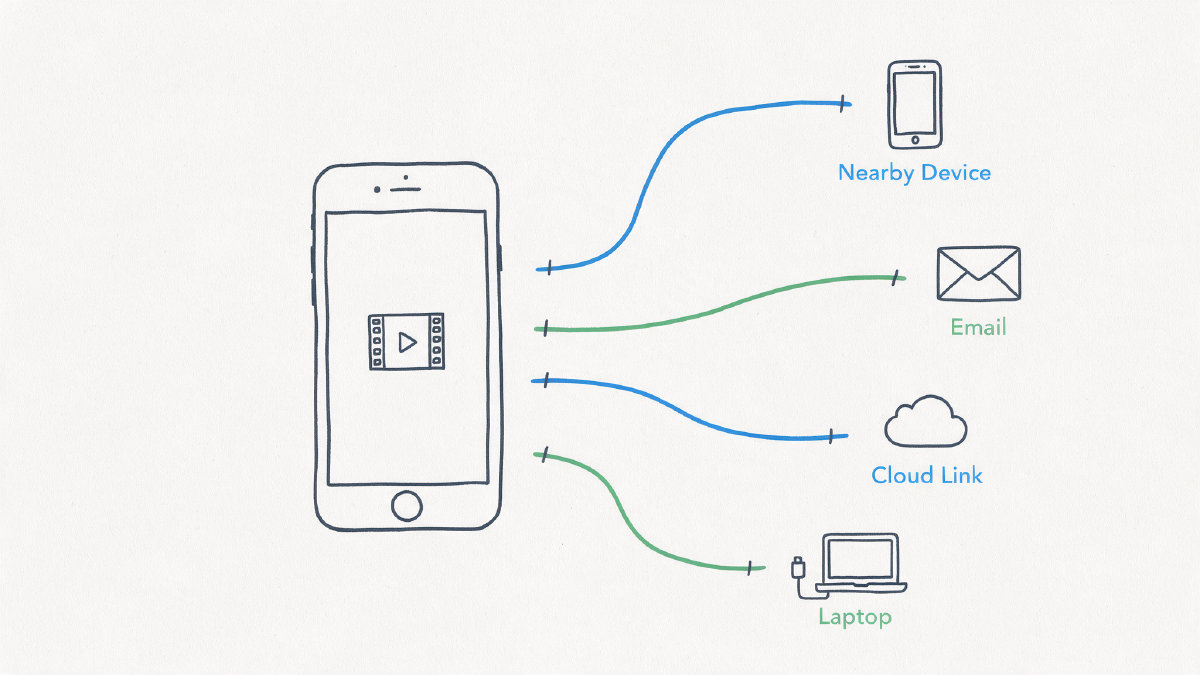
A cloud-storage link vs. Dropbox Transfer
When using a cloud-storage link, the file will be delivered to the user as-is. However, later edits will be seen once the link is opened. On the other hand, Dropbox Transfer sends a separate downloadable copy of the file, allowing users to access the same content without viewing it first.
Dropbox Transfer links have an upload limit of up to 100 GB per link, but they can be split up if needed. They’re protected by passwords, and users can determine when the link expires.
What about Messages?
Large video attachments to iMessage or MMS may vary depending on your carrier or messaging path, and Apple doesn’t publish one official iMessage maximum.
In the past, sharing via iMessage with another iPhone seemed to allow files up to 2 GB, but it’s unclear whether that still holds now that photos may be stored automatically in iCloud. It’s possible that there are specific length and resolution constraints on large messages, along with an unknown compression behavior.
When sharing media from an iPhone to a non-Apple device, users have reported limits around 3.5 MB.