Troubleshooting · App Fixes
Application Is Not Available: What It Means and What to Check
Guide details
- Written by
- Truly Helpful Guides
- Published
- Last updated
- Sections
On this page16 sections
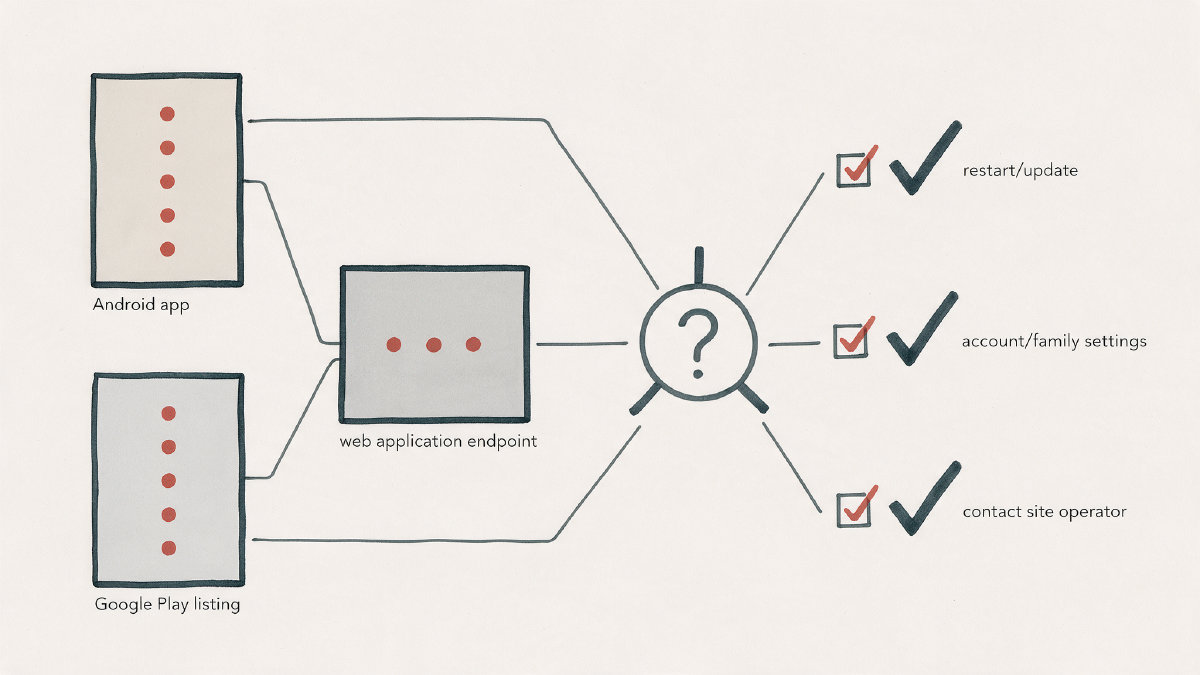
You're on Android, and the application is not available. The app you want isn't there. Maybe the app is already installed, or maybe Google Play won’t allow it. Alternatively, the problem might be in your browser, where the site’s server is not responding to your request. If the latter is the case, there are specific error messages you should know about.
Android users have three primary troubleshooting paths: first, trying out the supported fixes when an app has been installed, then checking if one app is the issue or something else; finally, looking at whether a specific device configuration is responsible.
When visiting a hosted website, you may also run into a different message, depending on the hosting provider and cloud platform, that says the site or application is not available because of a health check or deployment problem. This is more common for business websites than ordinary consumer web services.
Android troubleshooting
If you’re experiencing problems with an Android app (e.g., Application is not available), here’s what to try, in order. But don’t assume this list will work for every situation. Each phone has a slightly different menu system, some require a certain Android version, others may be resolved via an update or by contacting the app developer or publisher directly.
Restart the phone
First, restart the device and attempt to install or launch the app again. If nothing works, see the next steps below.
Update the phone
Android phones get updates. Sometimes those updates include patches that fix bugs or compatibility issues. Make sure your Android device is updated to its latest version before attempting to install or update any apps.
Update the app
Some apps need to be manually updated, which can be done in the Google Play Store: tap the profile icon, choose Manage apps & devices, then update the app under “Updates available.” Otherwise, simply uninstall and reinstall the app.
Force stop
Some Android devices allow apps to continue running in the background even after they’ve been launched. You can force stop these rogue processes in your phone’s settings.
Clear cache
Many Android apps use the device’s internal storage as a cache, especially to store downloaded content. If an app keeps crashing or otherwise misbehaving, clearing the cache can help restore stability.
Clear data
If you clear an app’s data, it’ll act like you’ve deleted the app entirely — just keep in mind that you’ll lose all local changes. Clearing app data is similar to performing a factory reset, though only limited to one app.
Sync the clock with Google servers
This is probably overkill for modern Android devices, but Google relies on the accuracy of your phone’s time stamp, particularly when launching secure apps. Sync the phone’s clock with Google Play so that your device doesn’t become incompatible with the app.
Reinstall the app
If you’re still seeing problems with an app that you previously installed, consider removing it and re-downloading it from Google Play.
(All checks for Android 8.1 and up)
Decide whether the remaining problem points to one app, Google Play, or the broader device
The above checks were ordered specifically to address one app. But sometimes an issue is either with another app, or the entire device itself.
Check what still fails after applying these Android-specific fixes. For example:
One app only: A single app or two apps fail, while the rest of your apps function normally.
Other apps work: All of your apps function normally, including third-party ones.
Apps will not update: You cannot update or download any apps, suggesting a problem with either Google Play itself, your account, or your phone’s overall functionality.
Google apps trouble: The same issue is affecting both Google apps and third-party apps, suggesting a device-level issue rather than a problem with one app.
Contact the app developer: You’re encountering an issue with a single app, but none of the other steps have worked. In that case, contact the developer directly.
Contact Google Play: Contact the Google Play support team for assistance with a particular app.
In addition, Google Play imposes various supervised-account conditions on apps, meaning an app might not be available to you due to the restrictions enforced by Family Link or other parental controls systems. If an app isn’t available for kids, or if you’re under 13, the app might not be compatible with your current age rating or your country’s applicable age requirements. Similarly, some apps are explicitly restricted by their developers to users who are 18 or older.
Finally, if you encounter an error that resembles OpenShift-style language, you’re most likely accessing a hosted application. That means that either the endpoint isn’t working, the service hasn’t started, or it’s simply unresponsive. There are several reasons why an endpoint wouldn’t serve requests, including network path errors, readiness/liveness probe errors, or simply a deployment bug.
502, 503, or 504 errors
If you receive one of these gateway error codes, that could indicate a number of things, such as a misconfigured proxy, timeout, or lack of resources.
Ping timeout
There are times when a ping timeout occurs even if a host is online. Ping timeouts often occur because the destination doesn’t respond quickly enough.
Packet loss
Similarly, packet loss means some replies are not making it back; in the cited case, it was 100% during the outage, but the break can also be somewhere along the network path.
What do I do?
Ordinary visitors generally can’t do anything except wait, and hope the operator of the service fixes the problem soon. In rare cases, you might find that the failure affects only you, which could suggest an ISP problem.
Wait
Sometimes a problem simply goes away.
Contact the site operator
If you feel strongly about the problem, then you should definitely let the website owner know about it.
Underlying cloud
Cloud providers often operate their own internal services that aren’t accessible to end users. For instance, Amazon runs AWS, but the underlying infrastructure (storage, computing, networking) is largely invisible.
Lower stack
Most people are aware that internet service relies on physical infrastructure, like fiber-optic cables and cell towers. However, many people don’t recognize how deeply nested the layers of software are.
No visitor server access
You’re not the person who actually runs the server, nor do you have access to it. Therefore, you’re probably not going to be able to “fix” the issue without some serious IT expertise.
What details to send?
App developers, Google Play, and other IT administrators typically want to separate the different cases. Let them know what you saw, exactly, when the problem occurred. They’ll be better equipped to understand whether it’s your account, your phone, or the service itself.
Include the following information in whatever way makes sense:
Exact message
Name of the app or URL of the site
Device screen, or browser
Time
502/503/504 status
Did anything else work?
Any other apps or sites? Was it consistent?
What steps have you already tried?
Who you should contact
App developer
Google Play
IT administrator
Website owner